
PayPal Verify Your Identity Loop
Getting stuck in the PayPal verify your identity loop can be one of the most frustrating problems when trying to access your account. Instead of successfully completing the verification process, PayPal repeatedly asks you to verify your identity, leaving you unable to log in, send money, receive payments, or manage your account.
This issue can affect both personal and business accounts and often appears after signing in from a new device, updating your account information, or triggering one of PayPal’s security checks. While it may seem like your account is permanently locked, the verification loop is usually caused by a temporary problem that can be resolved with the right troubleshooting steps.
The key is understanding why the PayPal verify your identity loop occurs. Rather than repeatedly submitting the same information, it’s better to identify the underlying cause and follow the appropriate solution. In many cases, completing additional verification, updating your browser, or confirming your account details is enough to restore normal access.
In this guide, you’ll learn what causes the PayPal verify your identity loop, why it happens, and nine proven fixes that can help you successfully verify your identity and regain access to your PayPal account.
Quick Answer
If you’re stuck in the PayPal verify your identity loop, first make sure you’re entering the correct verification information and using a trusted device or browser. Then check for any pending verification requests in your PayPal account, clear your browser cache if necessary, and complete any requested identity verification. Most verification loops are caused by security checks or incomplete account verification rather than permanent account restrictions.
Table of Contents
What Is the PayPal Verify Your Identity Loop?
Short Answer: The PayPal verify your identity loop occurs when PayPal repeatedly asks you to confirm your identity but doesn’t complete the verification process. As a result, you’re unable to finish signing in or fully access your account until the issue is resolved.
PayPal uses identity verification to protect customer accounts and comply with financial regulations. Normally, you’ll only need to complete verification when requested, after which you’ll regain access to your account. However, if something interrupts the process, PayPal may continue requesting the same verification each time you attempt to log in.
This repeated verification request can prevent you from sending payments, receiving money, updating account settings, or accessing important account information. Fortunately, the issue is often temporary and can usually be resolved by correcting the underlying problem.
Why Does the PayPal Verify Your Identity Loop Happen?
Short Answer: The PayPal verify your identity loop is commonly caused by incomplete identity verification, outdated browser data, signing in from an unfamiliar device, account security reviews, or incorrect personal information.
One of the most common reasons is that PayPal couldn’t successfully verify the information you previously submitted. This may happen if your personal details don’t match your official documents or if additional verification is required before access can be restored.
The loop can also occur when you sign in from a new computer, use a VPN, switch internet connections, or trigger PayPal’s automated fraud prevention systems. In some cases, browser-related problems or temporary technical issues can prevent the verification page from completing successfully.
Understanding why the verification keeps repeating makes it much easier to choose the right solution instead of repeating the same unsuccessful steps.
Before You Start Troubleshooting
Before trying to fix the PayPal verify your identity loop, review your account carefully.
Make sure you’re using the correct email address or phone number associated with your PayPal account. Check that your legal name, address, and other personal information are accurate and match your official identification documents. If you’ve recently changed your phone number or email address, confirm that your account has been updated accordingly.
It’s also helpful to use a trusted device and a secure internet connection while completing the verification process, as unfamiliar devices or public networks can sometimes trigger additional security checks.
Fix 1: Complete Any Pending Identity Verification
The first step is to determine whether PayPal is waiting for additional information.
Sign in to your account if possible and review the Resolution Center or any account notifications. If PayPal requests a government-issued ID, proof of address, or other verification documents, submit them exactly as instructed. Make sure all uploaded documents are clear, valid, and match the personal information on your account.
Many users resolve the PayPal verify your identity loop simply by completing outstanding verification requests.
Fix 2: Use a Trusted Device and Internet Connection
PayPal monitors login activity to protect accounts from unauthorized access.
If you’re trying to verify your identity from a new computer, public Wi-Fi network, or while using a VPN, PayPal may continue requesting additional verification. Switching back to a device and internet connection you’ve previously used with your account often reduces unnecessary security prompts.
Using a trusted environment gives PayPal more confidence that the login attempt is legitimate.
Fix 3: Verify Your Personal Information
Incorrect or outdated account information can prevent PayPal from successfully completing identity verification.
Review your account details carefully and make sure your legal name, date of birth, address, and phone number are accurate. If any information is outdated or doesn’t match your official identification, update it before attempting the verification process again.
Even small differences between your PayPal account and your identification documents can contribute to the PayPal verify your identity loop, so it’s worth checking every detail before submitting another verification request.
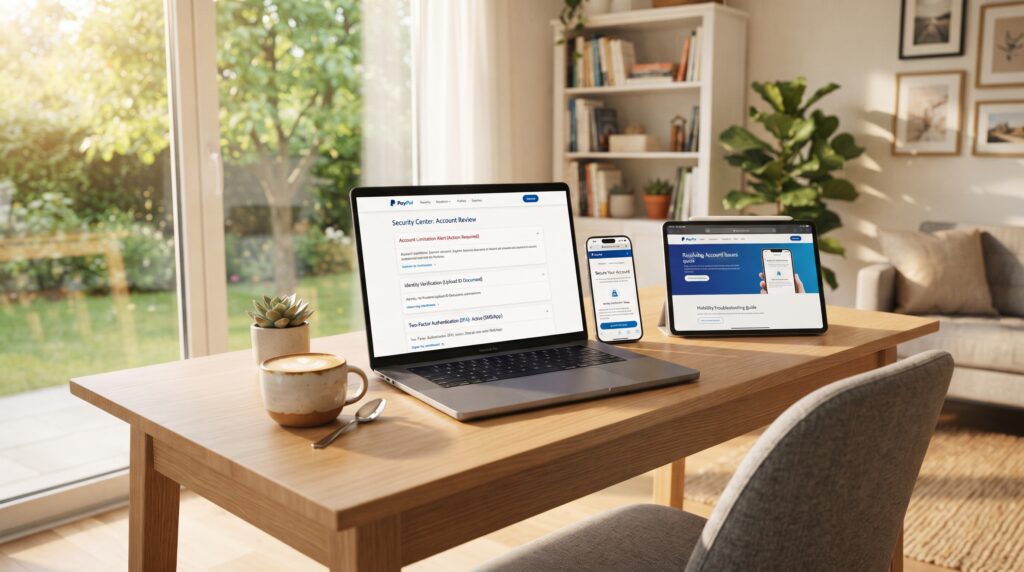
Comparison Table
| Fix | When It Helps |
|---|---|
| Complete pending verification | PayPal requests additional documents |
| Use a trusted device | Login is from a new device or network |
| Verify personal information | Account details are inaccurate or outdated |
These first three fixes resolve many cases of the PayPal verify your identity loop. In the next section, we’ll cover additional solutions, including browser issues, verification delays, account security reviews, and other common reasons PayPal repeatedly requests identity verification.
Fix 4: Clear Your Browser Cache and Cookies
Browser data can sometimes interfere with PayPal’s verification system, especially if cached files become outdated or corrupted.
If you’re experiencing the PayPal verify your identity loop, clear your browser’s cache and cookies before trying again. After clearing your browsing data, completely close your browser, reopen it, and visit the PayPal login page. This forces your browser to load a fresh version of the verification page instead of relying on old files that may be causing the loop.
Many users find that this simple step resolves repeated verification requests without requiring additional troubleshooting.
Fix 5: Disable Your VPN or Proxy
Using a VPN or proxy service can make your login appear to come from an unfamiliar location.
Because PayPal closely monitors account security, a sudden change in your apparent location may trigger additional identity verification. If you’re connected to a VPN, disconnect it temporarily and try signing in again using your normal internet connection.
Logging in from your usual location often helps PayPal recognize your account activity and may stop the PayPal verify your identity loop.
Fix 6: Try a Different Browser or Device
Sometimes the issue isn’t with your PayPal account at all—it’s with the browser or device you’re using.
If the verification page keeps reloading or repeatedly asks you to verify your identity, try another supported browser such as Chrome, Firefox, Edge, or Safari. You can also attempt to sign in from another trusted computer or your mobile device.
If verification works successfully on another device, the original browser may have a local configuration issue that’s preventing the process from completing.
Fix 7: Check for Account Security Reviews
PayPal may temporarily place your account under review if it detects unusual activity or needs additional information to comply with financial regulations.
If this happens, the PayPal verify your identity loop may continue until the review has been completed. Check your PayPal account notifications and the Resolution Center for messages requesting documentation or explaining why your account is being reviewed.
Responding promptly to any requests helps PayPal complete its review more efficiently.
Fix 8: Wait for Verification to Finish Processing
Identity verification isn’t always completed instantly.
After submitting your documents or confirming your personal information, allow PayPal enough time to process the request before attempting verification again. Repeatedly submitting the same documents or refreshing the verification page may slow down the process or create additional confusion.
Instead, monitor your email and PayPal notifications for updates regarding your verification status.
Fix 9: Contact PayPal Support
If you’ve completed every recommended step and you’re still stuck in the PayPal verify your identity loop, it’s time to contact PayPal Support.
Before reaching out, gather helpful information such as screenshots of the verification page, any error messages you’ve received, and details about the troubleshooting steps you’ve already completed. Providing complete information allows the support team to investigate your account more quickly and determine whether additional verification is required.
How Long Does Verification Take?
Short Answer: Verification times vary depending on the type of review and the information PayPal needs. Basic verification may be completed after your documents are reviewed, while more detailed security or compliance reviews can take longer.
After submitting your identification, avoid repeatedly restarting the verification process unless PayPal specifically requests additional information. Instead, check your email and Resolution Center periodically for updates.
If your documents are accepted and no further action is required, your account should regain normal access once the review has been completed.
Common Problems
Most PayPal verify your identity loop cases are caused by incomplete verification, browser problems, unfamiliar devices, VPN usage, incorrect account information, or ongoing security reviews.
Rather than repeatedly submitting the same information, review every notification in your PayPal account and complete any outstanding verification requests. In many situations, PayPal has already identified the issue and simply needs additional information before allowing you to continue.
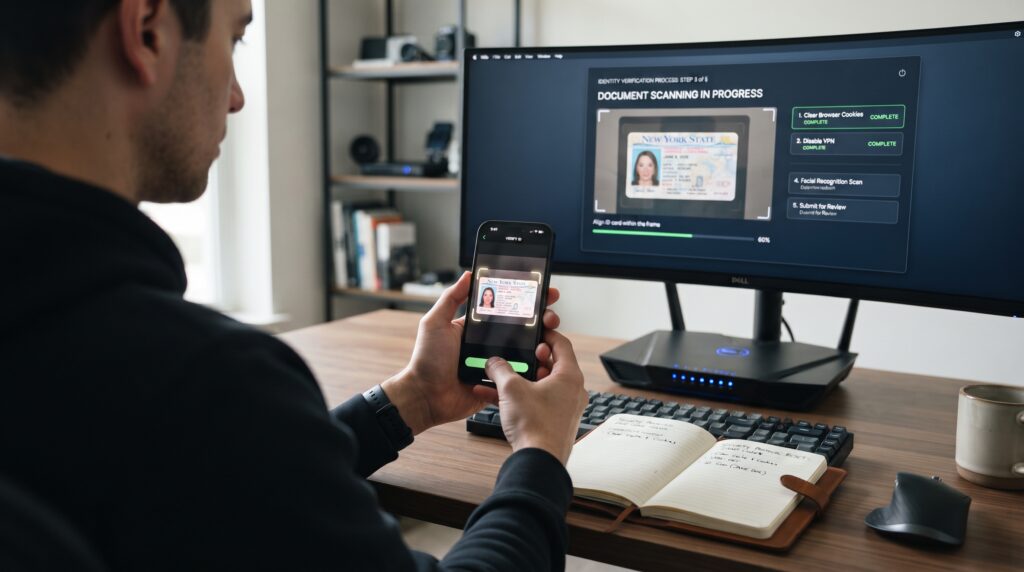
Comparison Table
| Problem | Recommended Solution |
|---|---|
| Browser cache issues | Clear cache and cookies |
| VPN or proxy enabled | Disable it and use your normal connection |
| New device or browser | Sign in from a trusted device |
| Account under review | Complete PayPal’s requested verification |
| Verification still looping | Contact PayPal Support |
Although the PayPal verify your identity loop can be frustrating, it’s usually temporary. Completing the required verification, using a trusted device, and following PayPal’s instructions carefully resolves the issue for many users without requiring major account changes.
Tips to Avoid the PayPal Verify Your Identity Loop
Preventing the PayPal verify your identity loop is often easier than fixing it after it occurs. Keep your personal information up to date, including your legal name, address, phone number, and email address. Whenever possible, sign in from devices and internet connections you regularly use, as unfamiliar logins may trigger additional security checks. Avoid using VPNs or proxy services during the verification process, and make sure any identity documents you submit are clear, valid, and match the information on your PayPal account. Taking these simple precautions can reduce the likelihood of repeated verification requests and help you access your account without unnecessary interruptions.
Frequently Asked Questions
If you’re experiencing the PayPal verify your identity loop, these are some of the most common questions users ask when trying to restore access to their accounts.
Why does PayPal keep asking me to verify my identity?
PayPal may repeatedly request identity verification if it can’t confirm your information, detects unusual login activity, or requires additional documents to comply with financial regulations. In many cases, completing the requested verification correctly resolves the PayPal verify your identity loop.
Can I still access my PayPal account during the verification loop?
Sometimes. Depending on the reason for the verification request, you may still be able to sign in and access limited account features. However, some actions—such as sending money, receiving payments, or changing account settings—may remain restricted until the verification process is successfully completed.
How long does it take to fix the PayPal verify your identity loop?
The time required depends on the reason for the verification request. If PayPal only needs to review your submitted documents, the issue may be resolved after the verification is completed. More complex security or compliance reviews may take longer before full account access is restored.
Will clearing my browser fix the problem?
It can. Outdated browser cache, cookies, or temporary files sometimes interfere with PayPal’s verification pages. Clearing your browser data or using another supported browser may resolve the PayPal verify your identity loop, especially if the issue is related to your local browser rather than your account.
Should I submit my identity documents more than once?
No. Repeatedly uploading the same documents usually doesn’t speed up the verification process and may create unnecessary delays. After submitting your documents, monitor your PayPal notifications and email for updates instead of restarting the verification process multiple times.
What should I do if nothing works?
If you’ve completed every recommended troubleshooting step and you’re still stuck in the PayPal verify your identity loop, contact PayPal Support. Be prepared to provide screenshots, account details, and information about the troubleshooting steps you’ve already completed so the support team can investigate your account more efficiently.

Final Thoughts
The PayPal verify your identity loop can prevent you from accessing your account, but it’s usually caused by a temporary verification or security issue rather than a permanent restriction. Understanding why PayPal continues requesting identity verification is the first step toward resolving the problem.
Start by reviewing your account information, completing any outstanding verification requests, and using a trusted browser and internet connection. If you’ve recently changed your personal information or signed in from a new device, correcting those issues may allow the verification process to complete successfully.
If the problem continues after you’ve followed every recommended solution, don’t keep repeating the same verification steps. Instead, review your PayPal notifications, monitor your email for updates, and contact PayPal Support if additional assistance is needed. A systematic approach is usually the fastest way to break the PayPal verify your identity loop and regain full access to your account.
Key Takeaways
- Contact PayPal Support if the verification loop persists after completing all troubleshooting steps.
- The PayPal verify your identity loop is usually caused by security or verification checks.
- Complete any pending identity verification requests before trying other solutions.
- Verify that your personal information matches your official identification.
- Use a trusted device and avoid VPNs during the verification process.
- Clear your browser cache or try another supported browser if the loop continues.
- Allow PayPal enough time to review submitted documents before trying again.
Leave a Reply