Why Is My Apple Pay Double Click Not Working?
If your Apple Pay Double Click Not Working issue prevents you from opening Apple Pay, you’re not alone. Many iPhone users rely on the side button double-click shortcut to access their payment cards quickly, especially when making purchases in stores. When the feature suddenly stops working, it can be frustrating and may leave you wondering whether the problem is caused by your iPhone settings, Apple Pay, or even a hardware issue.
The good news is that an Apple Pay Double Click Not Working problem is often easy to fix. In many cases, the issue is caused by disabled settings, outdated iOS software, Face ID or Touch ID configuration, Screen Time restrictions, or temporary software glitches. Once you identify the cause, the double-click shortcut usually starts working again without requiring a repair.
Understanding why your Apple Pay Double Click Not Working issue occurs is the first step toward restoring normal functionality. Rather than assuming the side button is broken, it’s important to check both your device settings and Apple Pay configuration.
In this guide, you’ll learn why the Apple Pay Double Click Not Working issue happens, how the shortcut works, and the most effective troubleshooting methods to get Apple Pay working again.
Quick Answer
If your Apple Pay Double Click Not Working issue occurs, first make sure the Double-Click Side Button option is enabled, restart your iPhone, verify your Face ID or Touch ID settings, and check for available iOS updates. If the feature still doesn’t work, inspect your side button and review Apple Pay settings.
Table of Contents
Why Is My Apple Pay Double Click Not Working?
Short Answer: An Apple Pay Double Click Not Working issue is usually caused by disabled Apple Pay settings, Face ID or Touch ID problems, outdated iOS software, Screen Time restrictions, or a temporary software glitch.
The double-click shortcut depends on several system features working together. If one of these settings is disabled or not functioning correctly, your iPhone may ignore the double-click action even though the side button itself still works normally.
Fortunately, most of these problems can be resolved without resetting your iPhone.
How the Apple Pay Double Click Feature Works
Short Answer: The Apple Pay double-click shortcut lets you quickly access your default payment card by pressing the side button twice, allowing you to authenticate the payment using Face ID, Touch ID, or your device passcode.
When everything is configured correctly, the shortcut launches Wallet immediately and prepares your selected payment card for contactless payments. If this process is interrupted by a software or settings issue, you may experience an Apple Pay Double Click Not Working problem.
Understanding how the feature operates makes troubleshooting much easier.
Before You Start Troubleshooting
Before changing any settings, perform a few quick checks.
Confirm that your iPhone supports Apple Pay, verify that you’ve added at least one payment card to Wallet, ensure your device is unlocked, and check whether any software updates are available. It’s also worth confirming that your side button responds normally in other situations.
These simple checks often identify the cause of an Apple Pay Double Click Not Working issue before more advanced troubleshooting becomes necessary.
Fixes for Apple Pay Double Click Issues
Fix 1: Enable the Double Click Shortcut
One of the most common reasons for an Apple Pay Double Click Not Working issue is that the shortcut has been disabled.
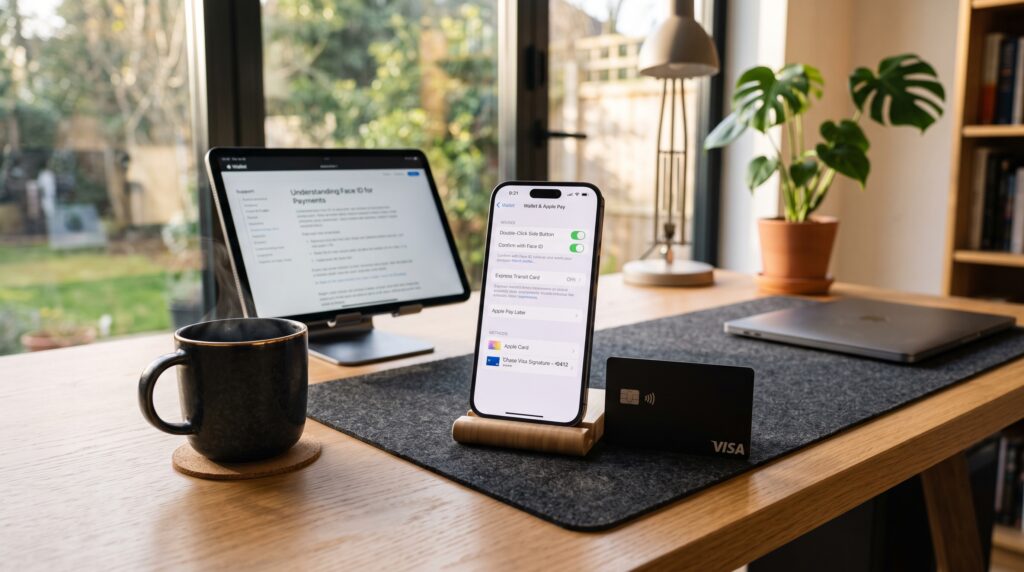
Open your iPhone settings, navigate to Wallet & Apple Pay, and verify that the Double-Click Side Button option is turned on. If it was disabled, enable it and test the shortcut again.
Many users accidentally turn this option off without realizing it.
Fix 2: Restart Your iPhone
A simple restart can resolve temporary software glitches affecting Apple Pay.
Turn your iPhone off completely, wait a few seconds, and power it back on. Once the device has restarted, try double-clicking the side button again to see whether Apple Pay opens correctly.
Restarting often fixes temporary Apple Pay Double Click Not Working problems without changing any settings.
Fix 3: Check Face ID or Touch ID Settings
Apple Pay depends on Face ID or Touch ID for secure authentication.
Open your biometric security settings and confirm that Face ID or Touch ID is enabled for Wallet and Apple Pay. If biometric authentication isn’t configured correctly, the shortcut may fail even if the side button works normally.
Verifying these settings resolves many Apple Pay Double Click Not Working issues.
Comparison Table
| Fix | Purpose |
|---|---|
| Enable Double-Click Side Button | Restore the Apple Pay shortcut |
| Restart your iPhone | Remove temporary software glitches |
| Check Face ID or Touch ID | Ensure Apple Pay authentication works correctly |
These first three fixes solve many Apple Pay Double Click Not Working issues. In the next section, we’ll cover six additional solutions, explain why the shortcut sometimes continues to fail, and share troubleshooting tips that many iPhone users overlook.
More Ways to Fix the Problem
Fix 4: Update iOS
Running an outdated version of iOS can sometimes prevent Apple Pay features from working properly.
Open Settings > General > Software Update and install any available updates. Apple frequently releases bug fixes, security improvements, and Wallet-related enhancements that may resolve an Apple Pay Double Click Not Working issue.
After updating your iPhone, restart it and test the shortcut again.
Fix 5: Check Apple Pay Settings
Review your Apple Pay configuration to make sure everything is set up correctly.
Open Settings > Wallet & Apple Pay and confirm that Apple Pay is enabled and that you’ve added at least one valid payment card. If no eligible card is available, the double-click shortcut may not launch Wallet as expected.
Checking your Wallet settings is a simple but important step when troubleshooting an Apple Pay Double Click Not Working problem.
Fix 6: Remove and Re-add Your Card
Sometimes the issue is related to the payment card rather than the shortcut itself.
Remove the affected card from Apple Wallet, then add it again using your bank’s verification process if required. This refreshes the payment configuration and may resolve problems preventing Apple Pay from opening correctly.
Many users fix an Apple Pay Double Click Not Working issue after re-adding their primary payment card.
Fix 7: Disable Screen Time Restrictions
Certain Screen Time settings can interfere with Apple Pay.
Open Settings > Screen Time > Content & Privacy Restrictions and check whether Wallet or Apple Pay has been restricted. If necessary, temporarily disable the restriction and test the double-click feature again.
Reviewing these settings can solve an Apple Pay Double Click Not Working issue that appears after parental controls or device restrictions have been enabled.
Fix 8: Check the Side Button
If the software settings appear correct, inspect the side button itself.
Test whether the side button responds normally when locking the screen, taking screenshots, or activating Siri. If the button feels stuck, unresponsive, or inconsistent, the problem may be hardware-related rather than an Apple Pay setting.
A faulty side button can prevent the Apple Pay Double Click Not Working shortcut from activating.
Fix 9: Contact Apple Support
If you’ve completed every troubleshooting step and the shortcut still doesn’t work, contact Apple Support.
Explain when the issue started, describe the troubleshooting steps you’ve already completed, and mention whether the side button works for other functions. This information helps support technicians identify whether the issue is software-related or requires hardware inspection.
If necessary, Apple Support can perform additional diagnostics for your Apple Pay Double Click Not Working issue.
Why the Double Click Still Doesn’t Work
Short Answer: If your Apple Pay Double Click Not Working issue continues after trying every fix, the cause may be a hardware problem with the side button, an unresolved software bug, a Wallet configuration issue, or an account-related restriction.
Testing your device after each troubleshooting step helps narrow down the exact cause. If the shortcut fails on the latest version of iOS and every setting is configured correctly, professional support may be needed.
Avoid resetting your iPhone until you’ve ruled out simpler solutions.

Common Problems
Users experiencing an Apple Pay Double Click Not Working issue often encounter one or more of these problems:
- Double-Click Side Button disabled.
- Face ID or Touch ID not configured.
- Outdated iOS version.
- Wallet not set up correctly.
- Screen Time restrictions enabled.
- Side button responding inconsistently.
- Payment card verification issue.
- Temporary software glitch.
- Apple Pay configuration problem.
Reviewing these common causes helps identify the issue more quickly.
What Most iPhone Users Overlook
One of the most overlooked causes of an Apple Pay Double Click Not Working issue is assuming the side button is broken without testing its other functions. If the button can still lock the screen, activate Siri, or take screenshots, the hardware is often working correctly and the issue is more likely related to Apple Pay settings or software. Another common mistake is forgetting to add a valid payment card after setting up a new iPhone. Spending a few minutes reviewing your Wallet configuration can often solve the problem without requiring a device repair.
Comparison Table
| Problem | Recommended Solution |
|---|---|
| Double-click shortcut disabled | Enable it in Wallet & Apple Pay settings |
| Face ID or Touch ID issue | Configure biometric authentication |
| Outdated iOS | Install the latest software update |
| Wallet configuration problem | Remove and re-add your payment card |
| Screen Time restriction | Disable Wallet restrictions |
| Hardware issue | Contact Apple Support |
These nine proven fixes resolve most Apple Pay Double Click Not Working issues. In the final section, we’ll answer frequently asked questions, explain how to prevent future shortcut problems, share warning signs of hardware-related issues, and summarize the most important takeaways.
Why Doesn’t Apple Pay Open When I Double Click?
An Apple Pay Double Click Not Working issue usually occurs because your iPhone can’t complete one of the required steps needed to launch Wallet. This may be due to disabled shortcut settings, Face ID or Touch ID configuration problems, outdated software, Wallet setup issues, or temporary system glitches. If your side button functions normally for other tasks, the issue is typically software-related rather than a hardware failure. Working through each troubleshooting step methodically is the fastest way to identify the exact cause.
How to Prevent Apple Pay Double Click Problems
Keeping your iPhone updated, maintaining a valid payment card in Wallet, and periodically reviewing your Apple Pay settings can help prevent an Apple Pay Double Click Not Working issue from returning. It’s also a good idea to verify that Face ID or Touch ID remains enabled for Wallet after major iOS updates or device resets. Avoid disabling Wallet features unless necessary, and test the shortcut occasionally to confirm everything is still functioning correctly.
Signs the Problem May Be Hardware-Related
Although most Apple Pay Double Click Not Working issues are caused by software or settings, some situations point to a hardware problem. If the side button feels loose, sticks when pressed, responds inconsistently, or fails to perform other functions such as locking the screen or activating Siri, the button itself may require inspection. In these cases, contacting Apple Support or visiting an authorized service provider is usually the best next step.
What to Check Before Using Apple Pay Again
Before trying Apple Pay again, make sure every required feature is working properly. Confirm that your default payment card is active, Face ID or Touch ID successfully authenticates, and the Double-Click Side Button option remains enabled in your Wallet settings. If you’ve recently updated iOS or restored your iPhone, review these settings because some preferences may have changed. Taking a minute to verify your configuration before making another payment can quickly resolve an Apple Pay Double Click Not Working issue and help prevent repeated failed payment attempts.
Frequently Asked Questions
Why doesn’t Apple Pay open when I double click?
An Apple Pay Double Click Not Working issue is commonly caused by the Double-Click Side Button setting being disabled, Face ID or Touch ID not being configured for Wallet, outdated iOS software, or temporary software glitches. Reviewing these settings usually resolves the problem.
Does Apple Pay require Face ID or Touch ID?
Yes. On supported devices, Apple Pay typically uses Face ID or Touch ID to verify your identity before completing a payment. If biometric authentication isn’t properly configured, the double-click shortcut may not function correctly.
Can a software update fix the problem?
Yes. Apple regularly releases iOS updates that include bug fixes and improvements for Wallet and Apple Pay. Installing the latest version of iOS can resolve many Apple Pay Double Click Not Working issues.
Why does the side button work for everything except Apple Pay?
If the side button works normally for locking the screen, activating Siri, or taking screenshots, the hardware is probably functioning correctly. In this case, the issue is more likely related to Apple Pay settings, Wallet configuration, or authentication.
Should I remove and re-add my payment card?
If the shortcut still doesn’t work after checking your settings, removing and re-adding your payment card can refresh your Wallet configuration and resolve certain Apple Pay issues.
When should I contact Apple Support?
If you’ve tried every troubleshooting step, updated iOS, verified your settings, and the Apple Pay Double Click Not Working issue still persists, contact Apple Support to determine whether a software or hardware problem is affecting your device.

Final Thoughts
An Apple Pay Double Click Not Working issue can make contactless payments less convenient, but it’s often caused by a simple setting or temporary software problem rather than a serious device failure. Checking the Double-Click Side Button option, verifying Face ID or Touch ID, updating iOS, and reviewing your Wallet settings resolve most issues without requiring professional repairs.
If the shortcut still doesn’t work after trying every recommended solution, testing the side button’s other functions and contacting Apple Support can help determine whether the problem is software-related or hardware-related. Addressing the issue early helps ensure Apple Pay remains available whenever you need it.
Understanding why your Apple Pay Double Click Not Working issue occurs makes troubleshooting faster and helps prevent the same problem from happening again.
Key Takeaways
- Apple Pay Double Click Not Working issues are usually caused by settings or software.
- Enable the Double-Click Side Button in Wallet settings.
- Verify Face ID or Touch ID is configured for Apple Pay.
- Keep your iPhone updated with the latest iOS version.
- Check your Wallet configuration and payment cards.
- Test the side button to rule out hardware problems.
- Contact Apple Support if the issue continues after all troubleshooting steps.
Leave a Reply