
Why Is My Apple Pay Billing Problem with Previous Purchase Appearing?
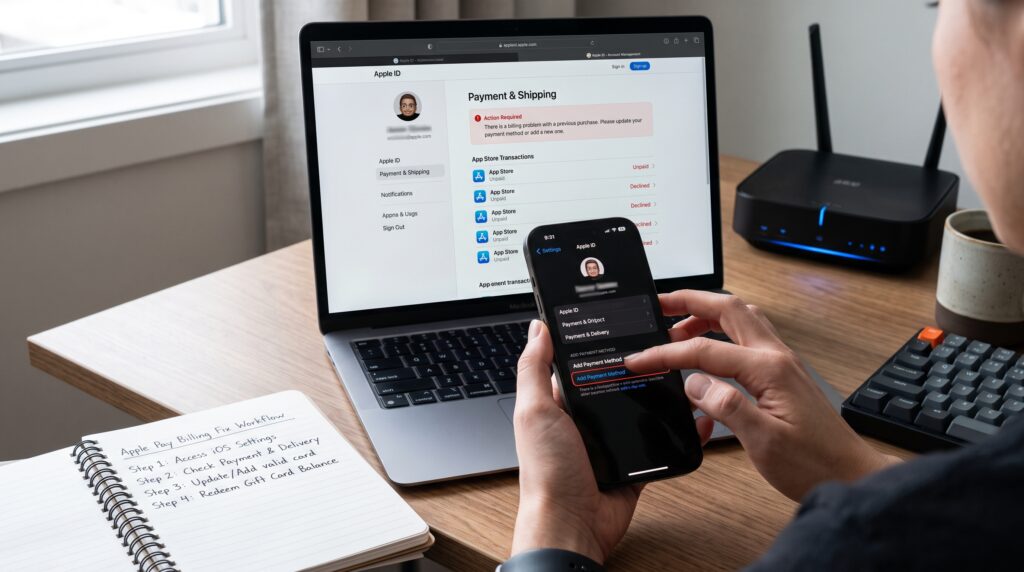
If you’re seeing an Apple Pay Billing Problem message related to a previous purchase, you’re probably wondering why it keeps appearing and how to make it disappear. This notification usually indicates that Apple couldn’t successfully charge your default payment method for an earlier App Store, Apple service, or subscription purchase. Until the outstanding billing issue is resolved, you may be unable to download apps, update subscriptions, or make new purchases using your Apple ID.
An Apple Pay Billing Problem doesn’t always mean there’s something wrong with Apple Pay itself. In many cases, the issue is caused by an expired payment card, insufficient funds, incorrect billing information, a declined bank transaction, or another payment authorization problem. Once the payment issue is corrected, the notification usually disappears automatically.
Understanding why an Apple Pay Billing Problem appears can help you resolve it much faster. Instead of repeatedly dismissing the notification, it’s important to identify the underlying payment issue and correct it before attempting another purchase.
In this guide, you’ll learn why the Apple Pay Billing Problem message appears, what it means, and the most effective ways to remove it and restore normal purchases.
Quick Answer
If you’re seeing an Apple Pay Billing Problem with a previous purchase, check your payment method, verify your billing information, ensure your card has sufficient available funds, and pay any outstanding balance associated with your Apple ID. If the issue continues, contact your bank or Apple Support for additional assistance.
Table of Contents
Why Is My Apple Pay Billing Problem with Previous Purchase Appearing?
Short Answer: An Apple Pay Billing Problem usually appears because Apple couldn’t successfully process payment for an earlier purchase due to insufficient funds, an expired payment method, incorrect billing information, or a declined transaction.
When Apple can’t complete a payment, it attempts to collect the outstanding balance using the payment method linked to your Apple ID. Until the payment is successfully processed, you may continue seeing the billing problem notification.
Resolving the payment issue normally removes the message automatically.
What Does This Apple Pay Billing Message Mean?
Short Answer: An Apple Pay Billing Problem notification means Apple is unable to complete payment for a previous purchase associated with your Apple ID payment method.
The message doesn’t necessarily indicate a problem with Apple Pay itself. Instead, it usually points to an issue with the payment method connected to your Apple account or an unpaid purchase that still requires payment.
Checking your payment information is often the quickest way to identify the cause.
Before You Start Troubleshooting
Before trying different fixes, review your Apple account carefully.
Confirm that your payment card hasn’t expired, verify your billing address, ensure your card has enough available funds, and check your purchase history for any unpaid transactions. Taking a few minutes to review these details often explains why the Apple Pay Billing Problem notification continues to appear.
Ways to Fix the Billing Problem
Fix 1: Check Your Payment Method
Start by reviewing the payment method connected to your Apple ID.
If your debit or credit card has expired, been replaced, or is no longer valid, Apple won’t be able to process the outstanding payment. Updating your payment method often resolves the Apple Pay Billing Problem immediately.
Fix 2: Update Your Billing Information
Incorrect billing information can prevent payments from being approved.
Review your billing address, ZIP or postal code, cardholder name, and other payment details to ensure they exactly match the information your bank has on file.
Correct billing information frequently resolves an Apple Pay Billing Problem without additional troubleshooting.
Fix 3: Pay Any Outstanding Balance
If Apple couldn’t collect payment for a previous purchase, you’ll generally need to complete that payment before making additional purchases.
Review your purchase history and follow any payment prompts associated with your Apple ID. Once the outstanding balance has been successfully processed, the Apple Pay Billing Problem notification usually disappears.

Comparison Table
| Fix | Purpose |
|---|---|
| Check payment method | Confirm your payment card is valid |
| Update billing information | Correct payment details |
| Pay outstanding balance | Clear unpaid Apple purchases |
These first three fixes resolve many Apple Pay Billing Problem notifications. In the next section, we’ll cover additional troubleshooting methods, explain why the message sometimes continues to appear, and share practical tips that many Apple users overlook.
More Ways to Resolve the Error
Fix 4: Verify Your Apple ID Payment Method
Your Apple ID payment method is used for App Store purchases, subscriptions, and other Apple services.
Open your Apple ID payment settings and confirm that your preferred payment method is active and can successfully process transactions. If multiple payment methods are listed, ensure the primary one is valid and hasn’t expired.
Verifying your payment method often resolves an Apple Pay Billing Problem without requiring additional changes.
Fix 5: Check for Bank Declines
Sometimes the payment is declined by your bank rather than Apple.
Your card issuer may reject the transaction because of insufficient available funds, suspected fraud, spending limits, or temporary security checks. Review your banking app or contact your financial institution to determine whether the payment was declined.
Bank authorization issues are a common cause of an Apple Pay Billing Problem notification.
Fix 6: Review Your Purchase History
Checking your purchase history can help identify the unpaid transaction.
Look for purchases, subscriptions, or services that still require payment. Apple may continue displaying the billing notification until the outstanding charge is successfully collected.
Reviewing your account activity makes it easier to locate the source of the Apple Pay Billing Problem.
Fix 7: Restart Your Device
Although billing issues are usually account-related, restarting your iPhone or iPad can refresh Apple services and clear temporary software glitches.
After restarting your device, sign back into your Apple account if necessary and check whether the notification still appears.
This simple step occasionally resolves temporary Apple Pay Billing Problem messages.
Fix 8: Contact Your Bank or Card Issuer
If your payment information appears correct but transactions continue to fail, contact your bank.
Ask whether the payment has been declined, whether there are restrictions on your card, or if additional authorization is required. Banks can often explain why Apple wasn’t able to process the payment.
Working with your card issuer frequently helps resolve persistent Apple Pay Billing Problem notifications.
Fix 9: Contact Apple Support
If you’ve verified your payment method, updated your billing information, and confirmed there are no issues with your bank, contact Apple Support.
Provide details about the billing notification and the troubleshooting steps you’ve already completed. Apple Support can review your Apple ID payment status and determine whether additional action is required.
This is often the final step for resolving a recurring Apple Pay Billing Problem.
Why the Billing Problem Still Appears
Short Answer: An Apple Pay Billing Problem may continue appearing because the previous payment hasn’t been completed, your payment method is still being declined, your billing information doesn’t match your bank’s records, or Apple is waiting for the transaction to be approved.
Until the payment is successfully processed, Apple may continue reminding you that an earlier purchase still requires payment.
Common Problems
Users seeing an Apple Pay Billing Problem commonly experience these situations:
- Expired debit or credit card.
- Insufficient available funds.
- Incorrect billing address.
- Bank declined the payment.
- Outstanding App Store purchase.
- Subscription payment failed.
- Invalid payment method.
- Temporary bank security hold.
- Apple ID payment issue.
Reviewing each of these possibilities often helps identify the exact cause of the notification.
What Most Apple Users Overlook
One of the biggest misunderstandings about an Apple Pay Billing Problem is assuming the message means Apple Pay itself is malfunctioning. In reality, the notification is usually connected to the payment method associated with your Apple ID or an unpaid Apple purchase. Many users repeatedly remove and re-add their cards to Apple Pay without checking whether there’s an outstanding balance waiting to be paid. Reviewing your Apple ID payment settings and purchase history is often much more effective than focusing only on Apple Pay.
Comparison Table
| Problem | Recommended Solution |
|---|---|
| Expired payment method | Update your card |
| Bank declined payment | Contact your bank |
| Incorrect billing details | Update billing information |
| Outstanding purchase | Complete the payment |
| Payment method issue | Verify Apple ID payment settings |
| Problem continues | Contact Apple Support |
These nine fixes resolve many Apple Pay Billing Problem notifications. In the final section, we’ll answer frequently asked questions, explain how to prevent future billing issues, discuss when the problem is caused by your bank, and summarize the most important steps for restoring normal purchases.
How to Prevent Future Apple Pay Billing Issues
The best way to avoid another Apple Pay Billing Problem is to keep your payment information current. Replace expired cards immediately, update your billing address whenever it changes, and make sure your preferred payment method always has sufficient available funds for subscriptions and purchases. Regularly reviewing your Apple ID payment settings can also help you identify potential issues before they prevent future transactions.
When the Problem Is Caused by Your Bank
Sometimes the Apple Pay Billing Problem isn’t caused by Apple at all. Banks may decline transactions because of fraud protection systems, temporary security checks, spending limits, or unusual purchasing activity. If your card continues to be declined even though your billing information is correct, contacting your bank is often the quickest way to identify the reason and approve the transaction.
What Most Users Should Check First
Before making major changes to your Apple account, review your purchase history and payment settings carefully. Many Apple Pay Billing Problem notifications are resolved simply by paying an outstanding balance or updating an expired card. Checking these two areas first can save time and prevent unnecessary troubleshooting. If everything appears correct but the message remains, proceed with the remaining fixes or contact Apple Support for further assistance.
Tips to Prevent Future Billing Problems
The easiest way to avoid another Apple Pay Billing Problem is to regularly review your Apple ID payment settings before an issue occurs. Make sure your primary payment method hasn’t expired, your billing address matches your bank’s records, and your card has enough available funds for subscriptions and purchases. If you receive a replacement debit or credit card, update it in your Apple ID as soon as possible instead of waiting for the old card to fail.
It’s also helpful to review your active subscriptions and purchase history from time to time. Small recurring charges are easy to forget, and if one of them can’t be processed, Apple may continue displaying a billing notification until the balance is paid. By keeping your payment information current and monitoring your account regularly, you can reduce the chances of seeing another Apple Pay Billing Problem and continue making purchases without unexpected interruptions.
Mistakes That Keep the Billing Problem Active
Many users accidentally prolong an Apple Pay Billing Problem by repeatedly dismissing the notification without identifying the unpaid purchase. Others remove and re-add their payment card before checking whether their bank declined the transaction or whether an outstanding balance still exists. Taking a few minutes to review your Apple ID payment settings and purchase history is usually far more effective than trying random troubleshooting steps.
Frequently Asked Questions
How do I clear the previous purchase billing problem?
To clear an Apple Pay Billing Problem, update your payment method if necessary, ensure your billing information is correct, and pay any outstanding balance associated with your Apple ID. Once the payment is successfully processed, the notification usually disappears automatically.
Why does the billing problem keep coming back?
A recurring Apple Pay Billing Problem often means Apple is still unable to process payment using your current payment method. An expired card, insufficient funds, incorrect billing details, or a declined bank transaction can all cause the notification to reappear.
Does this mean Apple Pay is broken?
No. An Apple Pay Billing Problem is usually related to your Apple ID payment method or an unpaid purchase rather than Apple Pay itself. Apple Pay may continue working for eligible transactions even while your Apple ID has an unresolved billing issue.
Can I download apps if I have a billing problem?
Depending on the situation, Apple may require you to resolve the outstanding payment before allowing new App Store purchases, subscriptions, or downloads associated with your Apple ID.
Should I remove and add my payment card again?
If your payment method is still valid, removing and re-adding it usually isn’t necessary. First verify that your billing information is correct and check whether your bank declined the payment.
When should I contact Apple Support?
If you’ve confirmed your payment method is valid, corrected your billing information, paid any outstanding balance, and the Apple Pay Billing Problem still appears, Apple Support can review your Apple ID for additional account-related issues.
Final Thoughts
An Apple Pay Billing Problem message usually indicates that Apple couldn’t complete payment for a previous purchase rather than a fault with Apple Pay itself. In most cases, the issue can be resolved by updating your payment method, correcting your billing information, ensuring sufficient available funds, or completing an outstanding payment linked to your Apple ID.
Instead of repeatedly dismissing the notification, take a few minutes to review your Apple ID payment settings and purchase history. If your bank confirms that the payment was approved and the message still appears, Apple Support can investigate your account and help identify any remaining issues.
Understanding why an Apple Pay Billing Problem appears makes it much easier to resolve the notification quickly and continue using Apple services without further payment interruptions.
Key Takeaways
- Apple Pay Billing Problem notifications are usually related to your Apple ID payment method.
- Check whether your payment card has expired.
- Verify that your billing information matches your bank’s records.
- Pay any outstanding Apple purchases or subscriptions.
- Contact your bank if a payment has been declined.
- Reach out to Apple Support if the notification continues after completing all troubleshooting steps.
- Keeping your payment information updated helps prevent future billing issues.
End of Part 3.
Leave a Reply